
Settings & privacy
Documentation
The Settings & Privacy screen (Admin → Settings & Privacy) is organised into
tabs. Most defaults are sensible out of the box — these are the levers when you
want to tune behaviour.
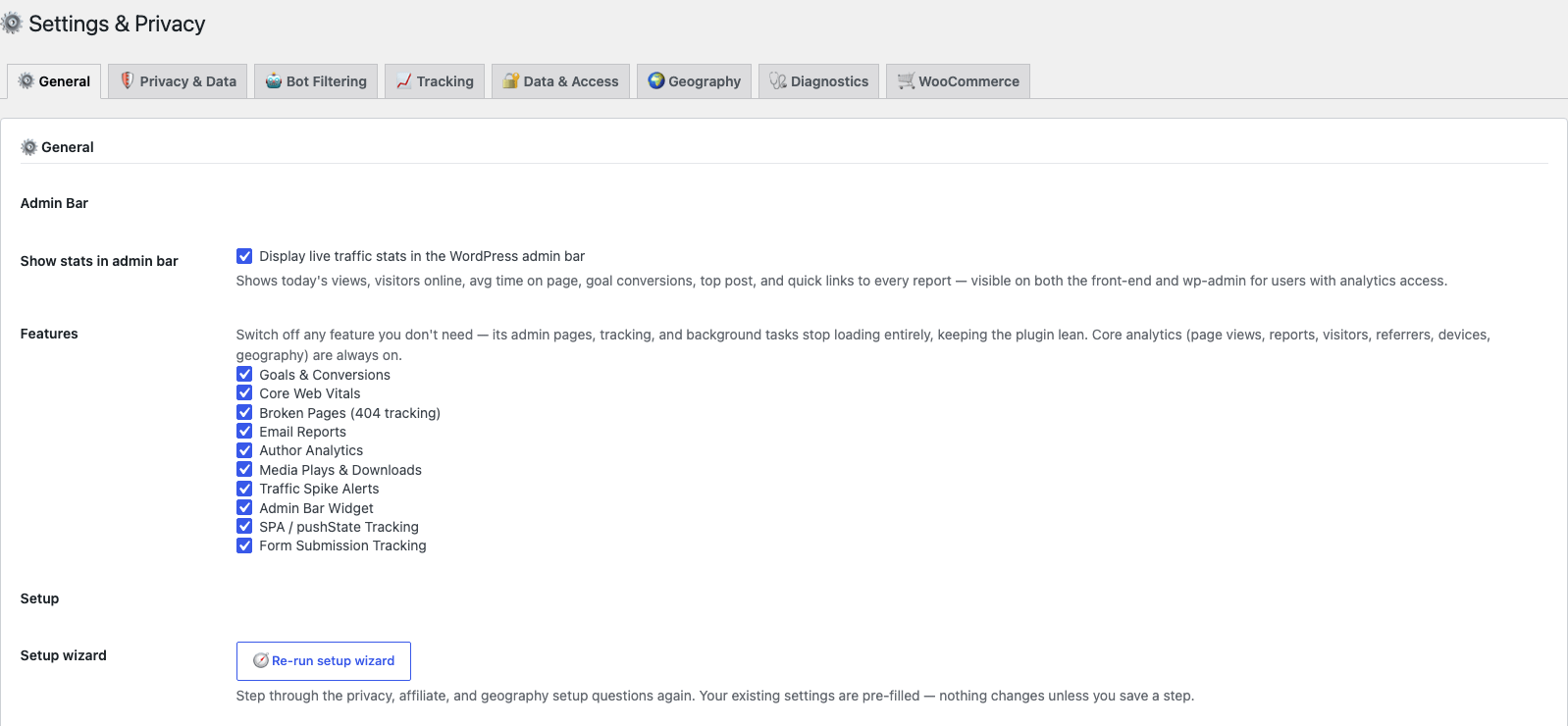
⚙ General
- Branding (Pro, 5-site and 50-site licences) — replace the plugin’s name and logo with your own. See Branding the plugin as your own below.
- Admin bar — show live traffic stats (today's views, online now, top post,
quick links) in the WordPress admin bar. - Features — switch off any module you don't need; its admin pages, tracking
and background tasks then stop loading entirely, keeping the plugin lean. Core
analytics (views, reports, visitors, referrers, devices, geography) are always on.
🛡 Privacy & Data
▶ Watch the video: Cookie consent settings in GreenOrb Statistics (2:46)

-
Returning-visitor cookie (
greenorb_statistics_visitor) — the only cookie GreenOrb
Statistics sets, and you can turn it off entirely.- On: a first-party cookie holding a random ID recognises returning
visitors across months and IP changes, giving you accurate unique-visitor
counts and a true new-vs-returning split. It is only set once the visitor
grants statistics consent. - Off: no cookie is ever set. Visitors are identified by a
monthly-rotating privacy hash instead, so returning visitors can't be
recognised across months and unique counts are less precise — but the
plugin has zero cookie footprint, and needs no cookie-consent banner of
its own.
What you give up by switching it off. The hash changes on the 1st of each
month, so anything that depends on recognising the same person over time
gets weaker: new-vs-returning visitors, visitor loyalty, and the
time-from-first-cart-to-purchase figure on the WooCommerce Insights page will
all lean toward "new". Two things are not affected: totals like views,
sessions and revenue are unchanged, and WooCommerce New vs Returning
customers (and lifetime value) keep working, because orders are matched on a
stable customer identity derived from the account or billing email rather than
the browser.The same caveat applies, more strongly, to anonymous mode (Privacy &
Data): that gives every visit a fresh random identity, so returning-visitor
detection is switched off entirely by design. - On: a first-party cookie holding a random ID recognises returning
-
Consent mode — Count visitors without cookies until they consent
(default: the returning-visitor cookie is added once they do) or Strict
(record nothing until consent). -
IP anonymization and browser privacy signals — one setting honours both
Do Not Track and Global Privacy Control. -
Data retention — how long raw visit data is kept (default 365 days).
Never-pruned monthly roll-ups keep your Year-on-Year
history intact regardless.
Your privacy policy, written for you
GreenOrb Statistics adds a ready-written section to WordPress's own Privacy
Policy Guide. Go to Settings → Privacy → Privacy Policy Guide and you'll
find it under GreenOrb Statistics, with a Copy suggested policy text
button to paste into your policy page.
It is not boilerplate — the wording is generated from your current settings,
so it describes what your site actually does:
- Whether anonymous mode is on (which changes the text substantially).
- Your real data-retention period, quoted in days.
- Whether Do Not Track and Global Privacy Control are being honoured.
- Exactly what is recorded: the page and time, device type and browser, the
referring domain, approximate country, the monthly-rotating privacy hash, and
thegreenorb_statistics_visitorcookie if you have it switched on. - A legal basis paragraph.
Change a setting and the suggested text changes with it, so it's worth
re-reading the guide after you adjust anything on this screen.
The text is a starting point drafted to match your configuration — it is not
legal advice, and it only covers what this plugin does. Your policy still
needs to account for everything else your site collects.
Using a cookie banner? Check the bridge
If you run a consent plugin — Complianz, CookieYes, Cookiebot, Borlabs and
others — there's one dependency worth knowing about, because it catches most
people out.
Consent plugins don't talk to analytics plugins directly. They publish the
visitor's choice through a small, free plugin called WP Consent API, which
acts as the bridge. GreenOrb Statistics reads that bridge.
None of the major consent plugins install it for you, and most don't mention
it. If it's missing, your banner still blocks its own scripts, but GreenOrb
Statistics never learns whether the visitor accepted or declined — so it
assumes consent, sets the returning-visitor cookie either way, and the
Consent mode setting above has no effect.
The fix takes a minute and needs no configuration:
- Plugins → Add New, search for WP Consent API, install and activate it.
- That's it. Your consent plugin publishes to it automatically, and GreenOrb
Statistics starts honouring real consent decisions immediately.
Or take the other route: switch the returning-visitor cookie off (above).
GreenOrb Statistics then sets no cookies at all, so there is nothing for the banner to
gate — the problem disappears rather than being fixed. The trade-off is the one
described under that setting: your totals are unchanged, but recognising the same
visitor across months gets weaker. Installing the bridge keeps both.
GreenOrb Statistics detects this situation and warns you in the admin, so you don't
have to remember to check.
🤖 Bot Filtering
- Sensitivity preset (e.g. Standard / Strict) — controls the bot-detection
layers (Matomo signature list, headless/automation detection, empty-UA check). - Rate limit and daily hit cap per IP to drop abusive traffic.
- Exclude IPs — specific addresses to never track.
- Exclude countries (Pro) — leave visitors from chosen countries out of your
statistics (on the Privacy tab, under Excluded IPs). It only hides them from
your reports: it does not block anyone from your site or stop them buying, and
WooCommerce orders from those countries are still recorded. It applies to new
visits, visitors whose country can't be worked out are always counted, and it
needs location detection set up (see Geography). Excluded visits
are listed as Excluded countries (your settings), never as bots. - Keep the bot signature list up to date automatically — off by default.
Bot detection works out of the box using the signature list bundled with the
plugin. Tick this and the site checks jsDelivr once a week for a newer copy of
the Matomo list; leave it unticked and you can press Refresh now whenever
you like instead. Either way the choice is yours — nothing is fetched until you
ask for it. See External services. - Behavioural flagging (automatic) — a daily scan catches the bots that
pass every filter above: automated browsers running real Chrome on rotating
IPs. A visitor with many sessions on a single page and zero interaction
events (no scrolls, clicks, downloads or plays) is badged 🤖 Suspected
bot on the Visitors screens. Flag-only: nothing is
excluded or deleted, and the badge clears itself if the visitor ever starts
interacting. The verdict is yours — a flagged visitor's profile offers
✅ Not a bot (never flag again) and 🗑 Delete this visitor's data
(erase + recalculate totals, optionally block the identity from future
tracking); see Visitors → Dealing with a flagged visitor.
📈 Tracking
- View cooldown, excluded user roles (e.g. don't track admins),
click-tracking selectors, SPA/pushState tracking, and related options. - Click tracking — list CSS selectors one per line to count clicks on matching
elements, or skip the setting entirely and add adata-greenorb-track="My label"
attribute to any element. Either way the clicks appear in the Top Tracked Clicks
panel on Reports. Only the element label is
stored, never form-field values. Clicks also appear as 👆 chips on the individual session and visitor timelines, so you can see who clicked and what they did next. - Media title lookup — off by default. When a YouTube or SoundCloud embed
is played, the player normally hands its title to the tracker in the visitor's
browser and nothing leaves your server. Occasionally a play starts before the
player is ready and no title arrives; tick this and your server will then make
one request to that provider's public oEmbed endpoint to look the title up,
caching it permanently. Only the public video ID or track URL is sent. Left off,
those rare rows show the URL instead of a title.
See External services.
🔐 Data & Access
- Which roles/capabilities can view analytics, CSV export, and GDPR
erasure tools (erase a visitor's data by IP). Erasing removes the visitor's
own records. Report totals for the last week are recalculated overnight;
totals from before that are anonymous counts and may still include their
visits.
🌍 Geography
- Detection method — Cloudflare country header, the free DB-IP Lite
database (no key), or MaxMind GeoLite2. - Record country only — off by default. Tick it and each new visit keeps
its country but not its town, region, postcode or map position. Town-level data
makes reports more detailed, but on a small site it can be enough to work out
who a visitor was, so country-only is the privacy-minimising choice. - Clear stored city data — removes the town, region, postcode and map
position from visits already recorded, keeping the country. Use it after
switching to country-only so your older visits match. It can't be undone. - Download the database — DB-IP Lite is not fetched automatically. Either
choose it during the setup wizard, or press the
download button here. Until you do, location stays unresolved and no request
leaves your server. If your host blocks outbound connections, download the file
elsewhere and use Manual Upload on the same screen. - Keep the geolocation database up to date automatically — off by default.
DB-IP publishes a new edition monthly; tick this to check weekly for a newer
one, or leave it off and refresh by hand. See External services.
🏷 Branding the plugin as your own
Pro, on the 5-site and 50-site licences. A single-site licence does not include it, and the Branding section simply does not appear.
If you build sites for other people, your client does not need to know which analytics plugin you chose. Under Settings & Privacy → General → Branding:
- Plugin name — replaces “GreenOrb Statistics” everywhere your client can see it. Leave it empty to use the real name.
- Logo — click Choose image to pick one from your media library, or paste a URL if the image lives elsewhere. A wide image around 320×80 works best; it is scaled down, never up. A transparent PNG sits best on the emailed report’s coloured header.
What changes
Your name and logo replace GreenOrb’s in every place a client is likely to look:
| Where | What they see |
|---|---|
| Admin menu and every report screen | your name, and your logo in the page header |
| Admin bar | your name |
| Dashboard widget | “Your name — Traffic Summary” |
| Emailed reports | your name in the subject line, your logo at the top, your name in the footer |
| Printed and PDF exports | your logo in the header |
| WooCommerce customer journey panel | your name |
| Plugins screen | your name, with the author and plugin links removed |
The Dashboard widget and the emailed report matter most: a client who never opens the analytics screens will still meet both. That is why the report’s masthead shows your logo instead of the plugin’s name rather than alongside it.
What does not change
- The plugin folder, and updates. The folder is still
greenorb-statistics-pro/and updates arrive exactly as before. Renaming is presentation, not disguise — nothing about how the plugin works depends on it. - The Licence screen, which is yours rather than your client’s, and still speaks plainly.
- This documentation, and anything on our website.
If a licence lapses or changes
Your branding stops being applied and the plugin shows its own name again — but nothing you entered is deleted. Renew, or move back to a 5-site or 50-site licence, and your name and logo return exactly as they were.
🩺 Diagnostics
- Plugin status, environment checks, the AI-abilities/MCP status, and the internal
error log.
🤖 AI Assistant
- Enable the assistant, pick a provider (Claude / ChatGPT / Gemini), enter the
API key (or define it inwp-config.php), choose a model, and toggle the
weekly-summary email. See Ask AI. - API key security: saved keys are encrypted at rest, masked, never sent to the
browser, never logged, and can be cleared with the "clear it" checkbox — or
defined as awp-config.phpconstant to keep them out of the database entirely.
See Ask AI → Your API key is kept secure.
🛒 WooCommerce
- Store-specific options, including whether to track admin/shop-manager orders
(off by default so your test orders don't skew revenue).
External services
Your analytics data lives in your own WordPress database and visitor data is never
sent anywhere. The plugin does contact a few third parties, but only for specific
jobs, and none of them run on activation — each is either something you switch
on or a button you press.
| Service | What it's for | When it happens |
|---|---|---|
| jsDelivr | Fetching the Matomo bot list and the DB-IP Lite database | Only when you enable one of the weekly update toggles, press a Download button, or pick DB-IP in the wizard. Sends your server's IP and a plugin User-Agent — nothing else. |
| DB-IP | The free geolocation database | The one-off download above. Lookups then run on your own server; visitor IPs are never sent to DB-IP. |
| MaxMind | Alternative geolocation database | Only if you enter a MaxMind licence key. Lookups stay local. |
| YouTube | Media-play tracking and video titles | Only on pages that embed a YouTube video. The player is contacted by the visitor's browser, not your server. Your server looks a title up only if you enable Media title lookup, and then at most once per video. |
| SoundCloud | Media-play tracking and track titles | Only on pages that embed a SoundCloud player. Same as above: the title lookup is opt-in and runs at most once per track. |
The YouTube and SoundCloud rows cover two different things. The player API is
loaded by the visitor's browser, automatically, but only on a page that already
embeds that provider's player — so it reaches no host the embed wasn't reaching
anyway, and not at all for a visitor who has declined statistics consent. The
title lookup is a request from your own server, and that one is off until you
switch it on.
If your site embeds no YouTube or SoundCloud players and you leave both update
toggles off, the plugin makes no outbound requests at all.
Full details, including terms and privacy-policy links for each service, are in the
plugin's readme under External services.