

A Divi 4 to Divi 5 migration has two parts: you install the Divi 5 update, then run the Divi 5 Migrator, which converts your pages in one go. The Migrator itself takes a minute or two. The work is in the preparation and the checks afterwards, and that’s what this guide covers, in the order I’d do them.
If you haven’t decided whether to move yet, start with Divi 5 Eight Months On: Should You Move Your Divi 4 Site Now?. This post assumes you’ve decided to go ahead.
⚡ Divi 4 to Divi 5 migration: the short answer
- You need Divi 4.27.6 or later before the Divi 5 update is offered.
- Do the whole Divi 4 to Divi 5 migration on a staging copy first. Only repeat it on the live site once the copy checks out.
- Install Divi 5, then run the Migrator straight away. Don’t open any pages in the builder in between.
- Pages with third-party modules still work after migrating. They run in “backward compatibility mode”, which loads the old Divi 4 code for that page.
- You can roll back, but it’s cleanest straight after migrating. Your own backup is the safety net.
- Running a shop? Wait until January. Black Friday is 27 November.
📋 Before you start
I’d allow an afternoon for a small site. Most of it is checking.
You’ll need:
- an administrator login for the site
- your Elegant Themes account login (for downloads, and for checking extensions)
- a way to make a staging copy: your host’s staging tool, or a local copy made with a backup or migration plugin
- a list of the pages that matter most: home, contact, your top services or products, and anything that takes payments or enquiries
Step 1: List what your site depends on
Before you change anything, write down:
- Every Divi extension you use: child themes, module packs and plugins bought from the Divi Marketplace or other developers. Look under Plugins and under Appearance → Themes.
- Where you’ve added your own CSS. Check Divi → Theme Options → Custom CSS, Appearance → Customize → Additional CSS, the Advanced tab of any modules you styled, and your child theme’s style.css.
- Any Divi 4 features you rely on that Divi 5 drops. Elegant Themes lists Split Testing and Quick Actions among those being retired, and says Full Site Editing and Draggable Spacing aren’t fully supported.
For each extension, check whether it supports Divi 5. On the Divi Marketplace, the product page has a Divi 5 compatibility section. For anything bought elsewhere, check the developer’s site or ask them.
One case needs action before you update. If a plugin’s author has opted out of Divi 5, the plugin won’t activate under Divi 5. Deactivate it first, and expect any page that used its modules to show raw shortcode text until you replace them.
Step 2: Back up everything
Back up the database, the uploads folder, and all theme and plugin files. A backup plugin or your host’s backup tool will do this. Download a copy and keep it off the server.
The Migrator keeps its own copy of your Divi 4 content, but it can’t help if something else goes wrong, and it doesn’t cover anything you build after migrating.
Step 3: Make a staging copy
Do every step from here on on the staging copy, not the live site.
Two things to check on the copy before you go on:
- It isn’t sending real emails. Contact forms and shop emails on a staging site can reach real customers. Some staging tools switch email off; check whether yours does.
- Search engines can’t index it. Look for “Discourage search engines” under Settings → Reading, or your host’s staging setting.
Step 4: Update WordPress, Divi and your plugins
Bring everything up to date while you’re still on Divi 4: WordPress itself, Divi (to 4.27.6 or later, so the Divi 5 option appears) and every plugin. Then check the staging site still looks right. If an update breaks something, you want to know that before Divi 5 is in the picture.
Step 5: Turn on Divi 5 updates and install Divi 5
- Go to Divi → Dashboard.
- Click Enable Divi 5 Updates.
- In the Divi overview card, click Update, then Update now.
When the update finishes, the site runs on Divi 5, but your content hasn’t been converted yet. Every Divi page is in backward compatibility mode until you run the Migrator.

Don’t open any page in the Visual Builder at this point. Elegant Themes warns that opening a page before migrating converts that page on the spot, with no way to roll it back.
Step 6: Run the compatibility scan
Go to Divi → Divi 5 Migrator. The compatibility check runs as soon as the page opens and takes a few seconds. It reports on your Theme Builder templates (header, body and footer), Divi Library items, pages, posts, projects and other post types, widget areas, and any plugins that use the Divi 4 framework. At the bottom it lists the modules your site uses, split into “Modules That Will be Converted” and “Modules That Will Not Be Converted”.
Read the report before you go any further:
- A blue tick means everything in that group will convert to Divi 5.
- An orange warning means some pages or plugins use modules the Migrator can’t convert. Click the group to see which pages. Those pages will still work and still look the same, but they’ll run in backward compatibility mode.
If anything is orange, the heading at the top reads “Your Site Is Using Modules Not Fully Supported By Divi 5”. That’s a warning, not a block. You can still migrate. There’s also a Download Compatibility Report button if you want a copy to keep or send to whoever looks after your site.

Compare the warnings with your list from step 1. If a warning comes from an extension you’re about to replace anyway, that’s fine. If it’s on your home page or your checkout, decide now whether you can live with that page loading the old code for a while.
Step 7: Run the Migrator
Click Migrate This Site to Divi 5. An “Are You Sure?” box reminds you to back up first. Click Confirm. The Migrator converts the whole site at once, so don’t close or refresh the page while it runs. Elegant Themes says it usually takes a few seconds, or a minute or two on a large site. On my five-page test site it took about two seconds.
When it’s done you’ll see “Welcome to Divi 5” with two buttons: Re-Run Divi 5 Compatibility Check and Restore Divi 4 Content. The restore button is your quick way back.

Then clear every cache: your browser, Divi’s own cache, any caching plugin, and your host’s or CDN’s cache if you have one. Old cached pages can make a migrated site look wrong when it isn’t.
Step 8: Check the staging site
Work through your list of important pages, on a computer and on a phone.
- Front end. Do the pages look the same as before? Compare them with the live Divi 4 site side by side.
- Theme Builder templates. Headers, footers, blog post and archive layouts, 404 page.
- Menus, including the mobile menu.
- Forms. Send a test enquiry. (Elegant Themes fixed a Contact Form backward-compatibility bug in Divi 5.18.0, so make sure you’re on the latest version.)
- Your own CSS. Elegant Themes says custom CSS on Divi 4 modules may need small tweaks. Check every page from your step 1 list.
- Third-party plugins. Anything that adds content to pages: galleries, booking forms, sliders.
- WooCommerce, if you have it: a product page, the basket, and a test checkout.
- The Visual Builder. Open a few pages and make a small change to a module, a row and a section, then save. (Now it’s safe to open pages in the builder.)
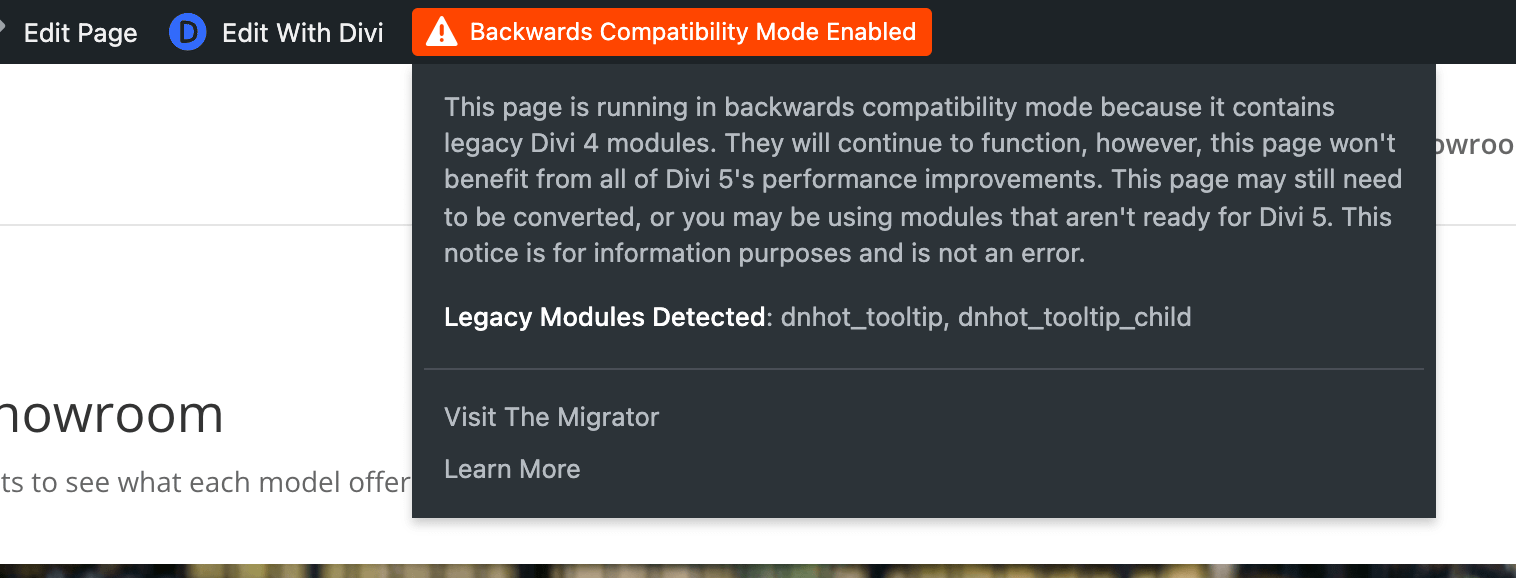
On a page in backward compatibility mode, you’ll see an orange “Backwards Compatibility Mode Enabled” notice in the admin bar when you’re logged in. Hover over it and it names the modules responsible. In my test it appeared only on the one page that used the third-party module; the other pages ran fully on Divi 5. Elegant Themes says the notice is information, not an error.
If a page is wrong and you can’t fix it, this is the time to roll back (see below) and try again later. Rolling back is simplest before you’ve made any Divi 5 edits.
Step 9: Move the change to the live site
There are two ways to do this. Pick the one that won’t lose anything.
Push the staging copy to live if nothing has changed on the live site since you made the copy: no new posts, comments or form entries stored in the database. Your host’s staging tool usually has a “push to live” button.
Repeat steps 2 to 7 on the live site if the live site has changed, and always for a shop. Pushing a staging database over a live shop overwrites any orders and customer accounts created since the copy was made. Pick a quiet hour, take a fresh backup, and go through the update and the Migrator again. You’ll know what to expect from the staging run.
Then repeat the checks from step 8 on the live site.
Step 10: Watch the site for a week
Some problems only show up when real visitors arrive: a template that didn’t convert on a page you didn’t test, or a link that changed. For the first week, look at your analytics each day for pages that suddenly get fewer visitors, and check for a rise in 404 errors. GreenOrb Statistics, the plugin I make, has a free Broken Pages report that lists each 404 address and how often it was hit. Search Console’s page indexing report is worth a look too, after a week or two.
↩️ How to roll back to Divi 4
Rollback comes in two parts: your content first, then the theme.
1. Restore your content. Go to Divi → Divi 5 Migrator, click Restore Divi 4 Content, then Confirm. This puts back the content the Migrator converted. The confirmation box says you’ll lose any changes made in Divi 5, and that only posts and pages that existed before the migration are affected. In my test the restored pages were identical to the originals. The restore only changes your content; the theme stays on Divi 5 until you do the next step.
2. Put Divi 4 back. Go to Divi → Theme Options → Updates and click Rollback to the previous version. This only works if you’ve updated Divi 5 once. If you’ve installed two or more Divi 5 updates, download Divi from My Downloads in your Elegant Themes account, then go to Appearance → Themes → Add New Theme → Upload Theme, choose the Divi.zip file and click Replace current with uploaded.
3. Stay on Divi 4. Go to Divi → Dashboard and click Disable Divi 5 Updates, so the site doesn’t offer Divi 5 again.
If the restore doesn’t give you what you expected, go back to the backup you took in step 2.
👉 If you’d rather not do it yourself
Most of this guide is checking, and checking takes time. If you’d like someone else to handle the move, I build and look after Divi sites for small businesses and can migrate yours on a staging copy first. Have a look at my web design service or get in touch.
❓ Frequently asked questions
How long does a Divi 4 to Divi 5 migration take?
The Migrator itself takes seconds to a couple of minutes. With the backup, staging copy and checks, allow an afternoon for a small site and longer for a shop or a site with many extensions.
Can I migrate one page at a time?
No. The Migrator converts the whole site in one go. A page you open in the Visual Builder before running the Migrator is converted on its own, but that page can’t be rolled back, so don’t do it on purpose.
Will my third-party Divi modules stop working?
Usually not. Modules that haven’t been updated for Divi 5 run in backward compatibility mode, and you can still edit them in the Visual Builder. The exception is a plugin whose author has opted out of Divi 5: it won’t activate, and its modules show as shortcodes.
What happens to shortcodes from other plugins?
Elegant Themes says shortcodes from non-Divi plugins keep working as usual.
Do I lose my custom CSS or child theme?
No, they stay. Elegant Themes says custom CSS and child themes should keep working, but some CSS written for Divi 4 modules may need small tweaks. Check every page that uses it.
Is the Divi 4 to Divi 5 migration free?
Yes. Divi 5 is a free update for anyone with a Divi membership, yearly or lifetime.
Sources
Checked on 1 November 2026. I tested the steps from Divi → Dashboard to Restore Divi 4 Content on a local copy of a Divi 4 test site with Divi 5.15.1, the same day. The screenshots are from that test site.
- Elegant Themes Help Center: How to Safely Migrate from Divi 4 to Divi 5 (18 September 2026)
- Elegant Themes Help Center: What Is the Divi 5 Migrator System?
- Elegant Themes Help Center: How to Rollback to Divi 4
- Elegant Themes Help Center: Backward Compatibility and Third-Party Divi Module Support
- Elegant Themes Help Center: Divi 5 FAQs
- Elegant Themes: Divi 5 changelog (5.18.1, 28 October 2026)
This post contains affiliate links to Elegant Themes. If you buy through them I may earn a commission, at no extra cost to you.


0 Comments