
Email reports
Documentation
Email Reports send scheduled HTML summaries of your site's traffic straight to
your inbox — views, unique visitors, top posts, referrers and device breakdown.
Open from Admin → Email Reports.
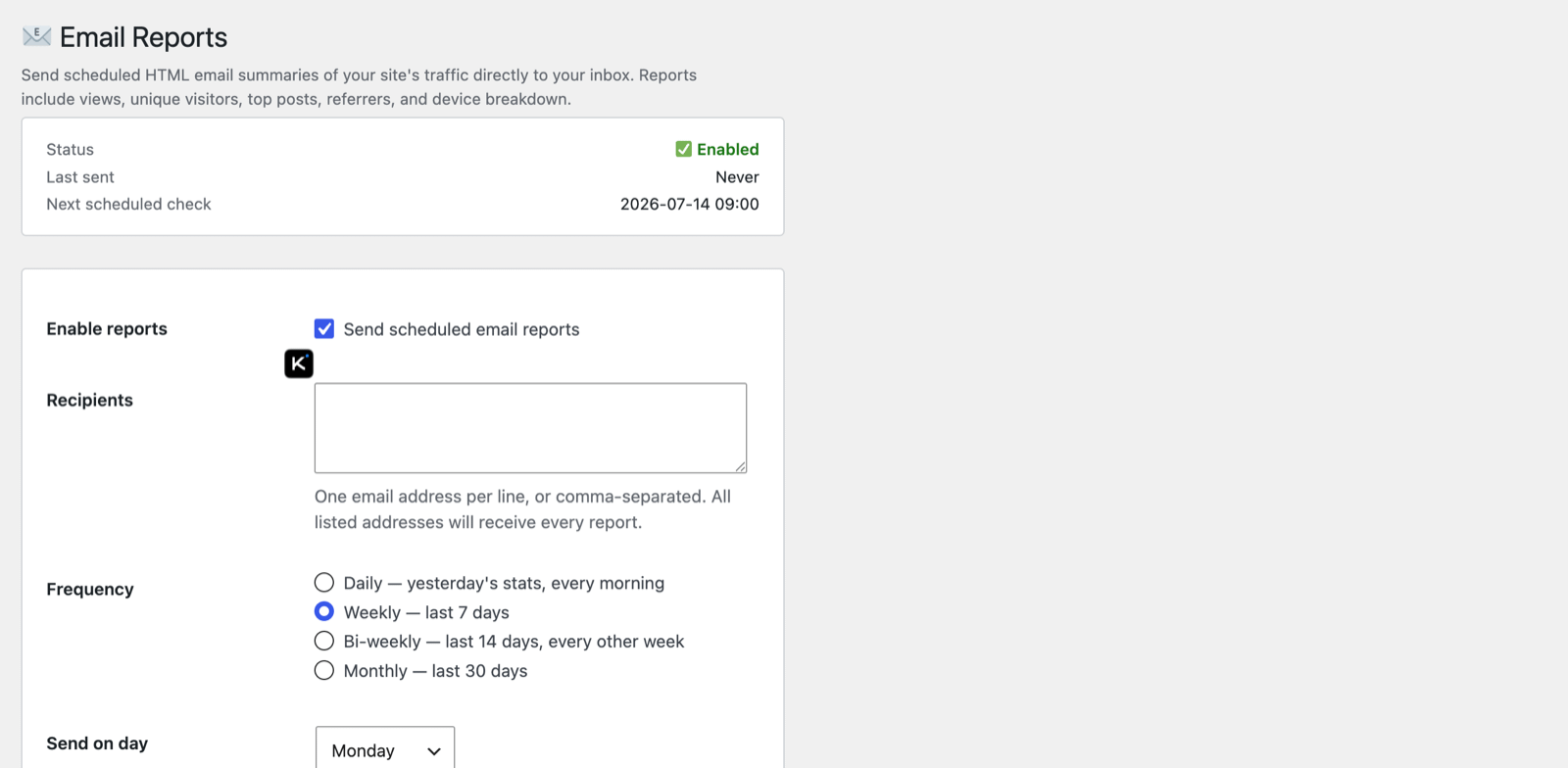
Not to be confused with the AI weekly summary. Email Reports are the classic
stats digest (numbers and tables). The plain-English Ask AI
weekly summary is a separate, narrative email. You can use either or both.
Status panel
At a glance: whether reports are Enabled/Disabled, when one was Last sent,
and the Next scheduled check.
Settings
- Enable reports — turn scheduled emails on.
- Recipients — one address per line (or comma-separated); every listed address
receives every report. - Frequency:
- Daily — yesterday's stats, every morning
- Weekly — last 7 days
- Bi-weekly — last 14 days, every other week
- Monthly — last 30 days
- Send on day — which weekday to send the weekly/bi-weekly report.
- Content — choose which sections to include in the email.
🚨 Traffic spike alerts
Scheduled reports tell you what happened last week. Spike alerts tell you what's
happening right now — an email the moment your traffic jumps. Their settings
live in their own section on this same Email Reports screen.
How a spike is detected. Once an hour, GreenOrb compares the visits in the last 60
minutes against a 7-day rolling average for that same hour of day — this
hour's traffic is measured against the last seven versions of this hour, not
against your daily average. That matters: 40 visits at 9am might be perfectly
normal while the same 40 at 3am is a genuine event, and an hour-of-day baseline
knows the difference. An alert fires when the current hour is both a multiple
of that average and above a floor you set.
The settings:
- Enable Spike Alerts — the master switch (off until you turn it on).
- Spike Threshold — the multiplier against the rolling average. Default 3,
i.e. three times normal for the hour. - Minimum Views — a floor that stops silly alerts when absolute traffic is
tiny (without it, 0 → 1 visit is an infinite spike). Default 10. - Alert Cooldown — how long to wait before another email, so a sustained surge
doesn't inbox-bomb you hourly. Default 6 hours. - Alert Recipients — comma-separated addresses. Leave it blank to reuse the
same recipients as your scheduled reports. - Per-Post Spikes — off by default. Turn it on to also be alerted when a
single post is spiking, with its own Post Minimum Views floor (default
5). This is how you find out the instant one track or article goes viral,
rather than waiting for the site-wide total to move. It applies to single posts
and pages only — WooCommerce product and archive pages are not checked for
per-post spikes. A per-post spike is reported even during a sustained site-wide
surge, when the hourly site-wide alert is paused by its cooldown. - Send test alert — fires a sample email immediately, regardless of your
current traffic, so you can confirm delivery works.
Site-wide alerts arrive as "Traffic spike: N visits in the last hour"; per-post
alerts as "Post traffic spike detected".
Spike checks run on WP-Cron, so they depend on your site getting traffic (or
a real system cron) to fire on schedule. On a very quiet site the hourly check
may run late — which, happily, is the case where a spike is most obvious anyway.
Tips
- Weekly on a Monday is a good default — a digest waiting for you at the start
of the week. - Add stakeholders' addresses to keep clients or teammates informed without giving
them dashboard access. - Pair a weekly report with spike alerts: the digest for the trend, the
alert for the moment. Start the threshold at 3× and raise it if you get noise.
Next: Settings & privacy →